
Workspace
Selection bar & image roles
Roles tell the model what each image is for. The selection bar appears above any image you select and lets you assign a role in one click.
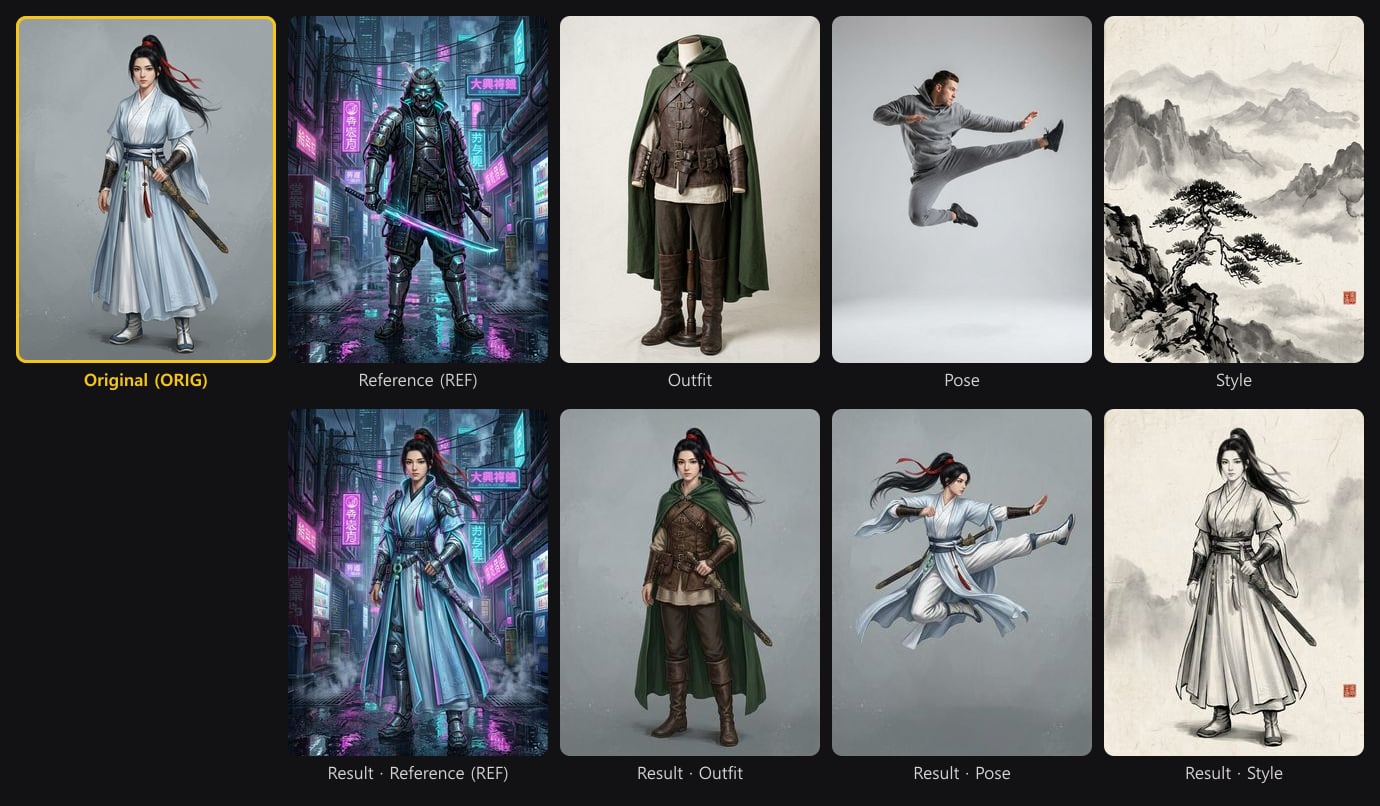
The roles
| Role | Meaning | Typical use |
|---|---|---|
| ORIG | The image being edited. Its identity, face and composition are preserved. | Your character sheet or illustration. |
| REF | A general reference. The model borrows whatever the prompt asks for. | Mood, palette, a specific detail. |
| costume | An outfit to transfer onto the original. | Armor, uniform, dress from another image. |
| pose | A body pose to copy. | A photo or sketch with the pose you need. |
| style | A rendering style to match. | Your studio's key art, a painting style. |
Each role has its own color. The badge on the canvas and the chip in the source image panel use the same color, so you can see at a glance what will be sent.
Rules
- A generation has at most one ORIG. Setting a new ORIG replaces the old one.
- You can assign several images to REF, costume, pose or style. Each provider has its own limit on total reference images; MergeRef warns you before you go over it.
- Press the active role again to clear it.
How roles reach the model
Cloud models receive the role images as reference inputs, together with an instruction that explains each image's job. That is why the same board works across Gemini, FLUX.2, GPT Image 2.6 and Seedream without rewriting your prompt.
Tips
- Crop references to the part that matters. A costume reference works better without a busy background.
- Use pose rather than REF when only the pose matters, so the model does not copy the reference character's face.
- Combine roles: ORIG + costume + pose produces your character, in the new outfit, in the new pose, in one generation.